Tuesday, 11 March 2014

FreeCAD: Simple Engine Animation.


A very simple animation to show the basics:


I do not have the time needed to go on detail plus this information will be obsolete once FreeCAD has an assembly module. So I'm posting just what I have.

Steps to animate something inside FreeCAD:


-Create parts

-Export them to STEP

-Create new document and import parts

-Determine how FreeCAD names the parts (in my script you can see "Part_Feature003", or "Part_Feature")

-Create a function that defines mathematically the mechanism (crank-slider type in mine, very simple)

-Create a timer that calls the function to make it move (look at the end of the script)


This is the python script, you can download parts here:


from PyQt4 import QtCore, QtGui

import Part
from FreeCAD import Base
import math as mt

i=0
def engine():
  global i
  
  i+=0.1
  
  cig=mt.degrees(i)
  
  
  B=mt.asin((mt.cos(i)*40.0)/140.0)
  AB=mt.asin((mt.sin(i)*(40.0/140.0)))
  PP=mt.cos(i)*40.0+mt.cos(AB)*140.0
  alphaB=mt.radians(90.0)-B
  
  br=FreeCAD.Rotation(FreeCAD.Vector(0,0,1),alphaB)
  bd=App.Vector(mt.sin(i)*40,mt.cos(i)*40.0,20.0)
  bdgc=FreeCAD.Vector(mt.sin(i)*40,mt.cos(i)*40.0,20.0)
  
  App.getDocument("montadoanimacion").Part__Feature002.Placement=App.Placement(App.Vector(0,0,0),App.Rotation(FreeCAD.Vector(0,0,1),-cig))
  
  #biela
  
  App.getDocument("montadoanimacion").Part__Feature003.Placement=App.Placement(bd,App.Rotation(FreeCAD.Vector(0,0,1),(mt.degrees(AB))))
  
  #piston
  
  App.getDocument("montadoanimacion").Part__Feature.Placement=App.Placement(App.Vector(0,PP-35,30),App.Rotation(-0.5,0.5,0.5,0.5))

timer=QtCore.QTimer()
timer.timeout.connect(engine)
timer.start(10)


Open the file and then copy-paste this script. It should move. 

That's all.

Now I hope to see how people creates new and more complex animations :)


Bye!

Saturday, 22 February 2014

BTool Release 2

Here is the second release of my BTool project!

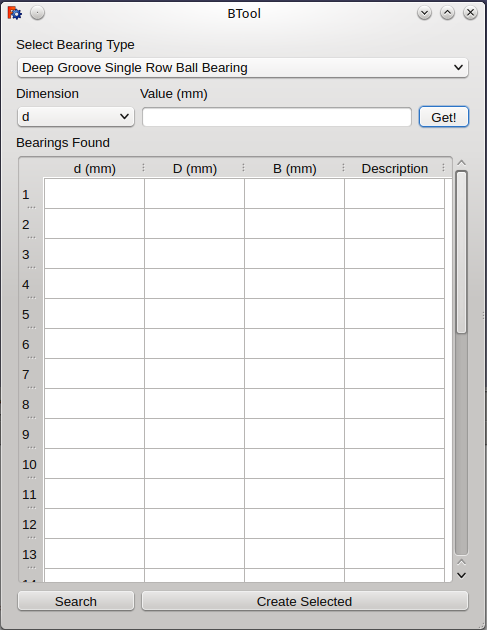
The new feature is a dialog window, where you can find, select and create the bearing without typing a word of code!


Self explanatory video:


How to install and start the BTool in linux:

-Download the files here

-Extract in /usr/lib/freecad/Mod

-In FreeCAD command line, type:

    import BMain

    BMain.BTool()


I think that the dialog window is so simple that I'm not going to describe how it works step by step.
I only want to clarify this:

d means inner radius of the bearing

D means outer radius of the bearing

B means bearing width

I should add a small picture to display that.


But the tool is almost finished, this is the todo list:

-Fix the bearing positioning script

-Add "cancel" button to dialog

-Add more parametric bearings

-Develop "Bearing smart placement function"


If you try it and like it, or if you have any problems or concerns, just leave me a comment :)


Bye!

Sunday, 26 January 2014

Bearing Tool for FreeCAD

BTool is almost here!

(this version is outdated, click here to get the new BTool version)


This is, maybe, the most complex thing that I have never programmed, isn't finished yet..
Is dirty, has bugs and lacks, but will be improved in a future.

Installation in Linux


Download the file here

Unzip it at /usr/lib/freecad/Mod

And that's all!

How to use it:

At the moment all BTool functions are commands but when finished you will be able to place nice bearings without typing a word of code at all. 

Inside the FreeCAD python console, import the libraries:

from BTool import *

Automatic Placement


This is really what I wanted to achieve, although it works very rough at the moment,  select a circumference (cylinder edge) and then type at command line:

BTool()

The proper bearing should be placed automatically. This only works for shafts and the deep groove single row ball bearing type at the moment.

You can try to rotate and translate a cylinder and then repeat the above. The bearing will be placed on the desired position too!

...or should, if you try few positions, you will find that sometimes the bearing is not aligned with the shaft. I'm working to solve that, without success by now.

Manual Input Placement

To place the most suitable bearing for a known dimension the command is:

BTool(dim,dimtype,btype,pos,normal)

The dim parameter equals to the magnitude you want to search.

The dimtype parameter sets which kind of dimension represents dim magnitude

A bearing has 3 main dimensions, inner radius, outer radius and width. 


Possible values of dimtype and their meaning:

0  --> inner radius

1 --> outer radius

2 --> width  

The dimtype conditions wich bearing will be selected from the list:

-If you select inner radius, the inner radius of the bearing will be equal or greater than the input magnitude, assuming you want to put a bearing in a shaft

-If you select outer radius, the outer radius of the bearing will be smaller or equal to the input magnitude, assuming you want to put a bearing in a hole. 

-For the width there is no special function yet and will select the first bearing greater or equal.


The btype parameter means bearing type, at the moment 0 for the Deep Groove Single Row Ball Bearing and 1 for Deep Groove Double Row Ball Bearing.

The arguments pos and normal are optional. They contain vector coordinates, being pos the location of the bearing (x,y,z) and normal the axial direction of the bearing (x,y,z)

This way, the shortest command we need to manually create a bearing is, for example:

BTool(10)  

That will find a Deep Groove Single Row Ball Bearing with inner radius greater or equal to 10 units and spawn it at (0,0,0)


Adding more bearing dimensions and types:

I've developed this tool with the end user in mind. To add more dimensions of a existing type of bearing, just copy paste the inner diameter, outer diameter, width and description to their respective fields. That should be all. 
Of course, the search method has to be improved and by the moment there is no way to add new types of bearings easily, this will be solved in a future.


And his is the current state of the project.

The dialog box is almost working, and will be out once I solve the placement problems.