Saturday, 21 June 2014

PyQtGraph: Box scenery

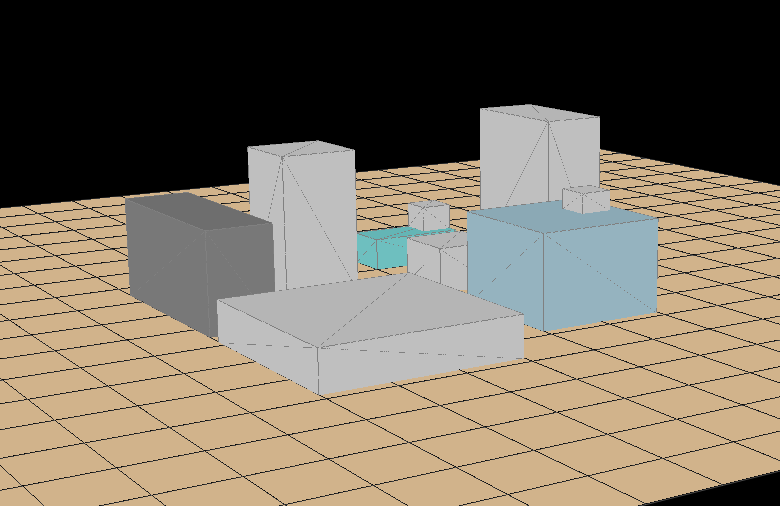
This post is about creating something like...


...using pyqtgraph.

Why?

Because of a project involving solar-thermal panels, at the beginning of this year, I realized that the way of obtaining how much shadow-per-year-percentage an object projects over another object was very inaccurate. So I attempted  to create a sun-simulator, where you place the objects that are near to the place you want to study and then, run a script that draws shadows (with their grey color as a function of the % of shadow) over the place. That way, you can smartly place your solar collector.


I've not gone that further, I left the (short) development once I knew that something ~ similar existed for free. Don't reinvent the wheel.

But I want to show this, because maybe it helps you to go a step forward with your own project.

The code is posted here (there are comments explaining how to create "buildings" and "panels")

If you have pyqtgraph in your system, copy and paste the code in a python terminal and you should see something.

I've been playing today with the camera positions, with the remote idea of a video-game in mind.

Camera command (I haven't found this at pyqtgraph docs, but here) example:

WINDOWOBJECT.setCameraPosition(distance=100,elevation=10,azimuth=30)


Greetings, Javier


Friday, 13 June 2014

FreeCAD: Inline-Four engine animation

Another more-less simple engine animation:


Find the errors, there are a lot of them!
:D

Sorry, no files or code this time, but keep in mind this is as difficult as this one


Bye!

Thursday, 12 June 2014

Bash: Execute script in a terminal at startup

Today I was wondering how could I monitor the temperatures of my computer automatically, using something that runs at startup without doing anything manually.

This is the result:


A terminal with transparent background that shows the temps.

Code:

The code to display sensor values and update them two times per second is:

while [ 1 ]; do 
sensors;                                  # Outputs cpu and motherboard temps
aticonfig --odgt;                     # Outputs my AMD GPU temps.
sleep 0.5;                               # Delay for 0.5 seconds
done

Save it somewhere as .sh and give execution permissions.

To run the code above (or any other you want) in a terminal:

gnome-terminal --profile=cristal --zoom=0.85 --geometry=60x16+1920+0 -x PATH

I've set previously a new profile of gnome-terminal (called "cristal") that has transparent background and "Temperaturas" as window label.
Then, using the --profile option I set that profile for the new terminal.

The option --zoom=0.85 reduces the terminal size at 85%  (genius)

The parameter --geometry is more interesting:

Columns x Lines + Xposition + Yposition

The position is given by your screen resolution. On my screen, the window is in the upper right corner when X = 1920 and Y=0

And finally, PATH is the absolute path to the code you want to execute.


To execute at startup, go to "startup applications", add a new application and where it says "command", paste the line that starts "gnome-terminal --profile......" customized to suit your particulad needs.
Save it and you are done.

Bye!